Over the past several weeks, Lab employees have received a wave of phishing emails that appear to come from coworkers, former colleagues, or old friends, often from personal Gmail accounts. Some of these accounts have been compromised, others are spoofed to display a familiar sender. Either way, the message arrives with a name you recognize, and that recognition is what the attacker is counting on.
The Fake Invitation
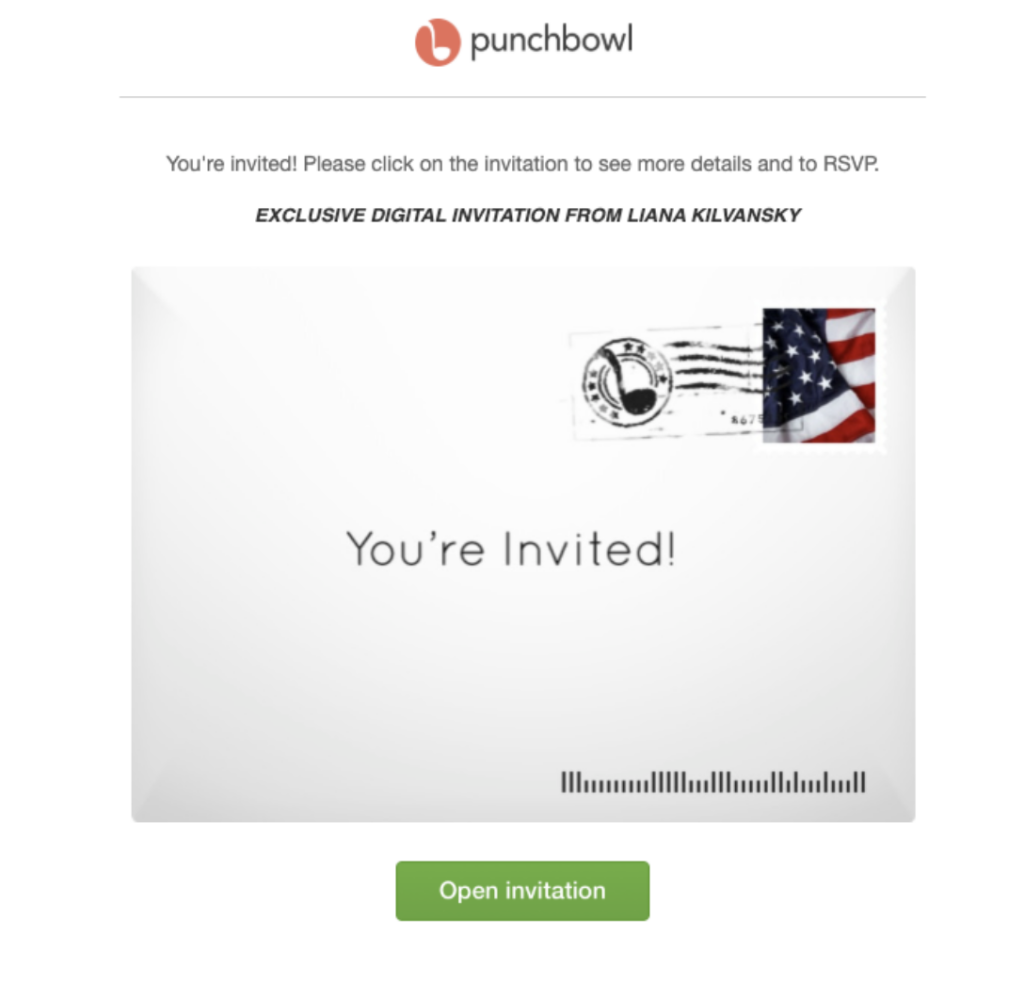
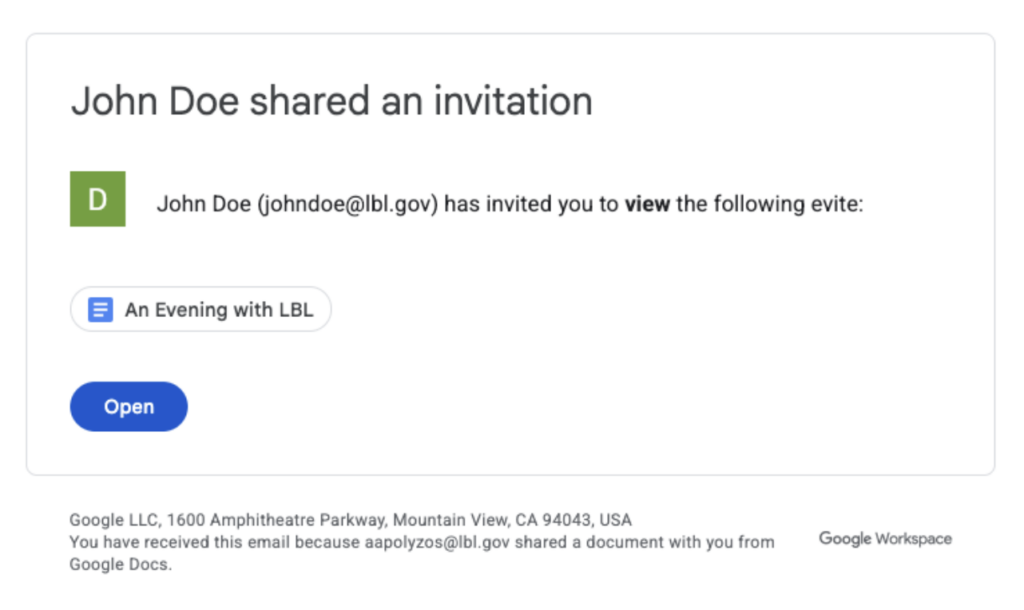
The most common lure right now is a party or event invitation. The email looks like a normal evite — “An Evening to Connect, Collaborate & Unwind,” or an exclusive invitation from someone you are professionally or socially connected to. It may be styled to look like Google Docs, Punchbowl, Evite, or another familiar service, with a friendly button: Open, Open Invitation, or RSVP.
You Can See the Destination Before You Click
Hover over a link or button without clicking, and the real destination appears in the bottom-left corner of the window. The button text and the logo can be anything the attacker wants. The status bar shows where the link actually goes.
In the first example, Punchbowl branding resolves to boxho[.]vu. In the second, Google Workspace branding resolves to dojcitraining[.]org. Both mismatches are visible before any click.
Read the domain from left to right, ending at the first single slash. A real Punchbowl link begins with punchbowl.com; a real Google Docs link begins with docs.google.com or drive.google.com. Note that boxho[.]vu/punchbowl/ contains the word “punchbowl” but the site you would visit is boxho[.]vu.
On a phone, press and hold instead of tapping to preview the full URL.
Where the Link Actually Goes
The Attack – legit Remote Access Tools
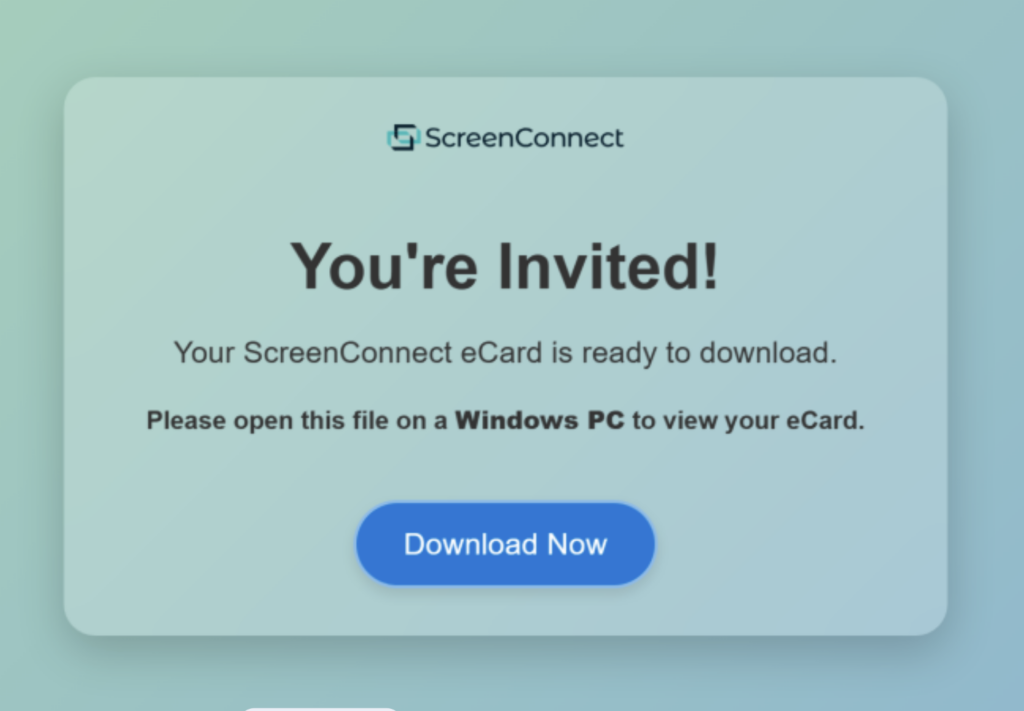
The file is not an eCard. It is a remote access tool — commonly ScreenConnect, though AnyDesk, TeamViewer, and similar products are also used. These are legitimate IT products being abused, which is why endpoint protection tools, such as Crowdstrike, do not provide complete protection.
If installed, the attacker will have the same access to your computer that you do: your files, your screen, your credentials, your email, and any Lab system you can reach. Once an attacker has stolen your information, they will use your computer to attack other computers or send the above phishing message from your email account!
No real invitation requires you to download and run a program.
Some Tips to keep in mind
If you did not start the interaction, do not trust it.
Be wary of an invitation you were not expecting. If a colleague appears to have sent you something unusual, verify through a channel you already know is theirs — their Lab email, their office phone, or in person. Do not reply to the suspicious message to ask. If the account is compromised, you may be communicating with the scammer, and they will claim the attack is legitimate.
Tell-Tale Signs
- Hovering over the button reveals a domain unrelated to the branding on the email.
- The sender is often a personal address (usually Gmail) but the display name is someone you know from work or who has your work email address. Any address, including familiar @lbl.gov addresses, can be spoofed or sent from a compromised account — a recognizable sender is not proof the message is genuine.
- The message is social rather than professional: a party, a reunion, a celebration, a “let’s catch up.”
- There is almost no content. Real invitations include what, where, and when. These fake ones give you a button.
- You are eventually asked to download and run a file, often with a note that it must be opened on a Windows PC.
Examples We Have Seen
Subject lines
- An Evening to Connect, Collaborate & Unwind
- You’re Invited! Exclusive Invitation from [Name] — RSVP Today
- [Name] shared an invitation with you
- An Evening with LBL
What to Do
For a suspicious invitation, do not click the link and do not download anything.
If you have already clicked a link, downloaded a file, called a number, or allowed anyone to connect to your computer, disconnect from the network right away and report it to the Cyber Security team at security@lbl.gov and we will help you with the next steps.

