Automatically Label Email Records Using Google Workspace Studio
To help streamline records management and make it easier for staff to identify and retain official email records, Google Workspace now supports Workspace Studio, a feature that uses AI to automatically apply the “.LBNL Records” label to emails that meet the definition of an email record.
Once enabled, the Flow runs entirely within your account and evaluates incoming messages in real time. Emails that meet the criteria are automatically labeled, helping you stay compliant with records requirements with minimal manual effort.
Access Workspace Studio
- Navigate to Google Workspace Studio.

- Select the “+” to create a new Flow.

- Label the new flow as .LBNL Records Flow

Create the Email Records Flow
Step 1:
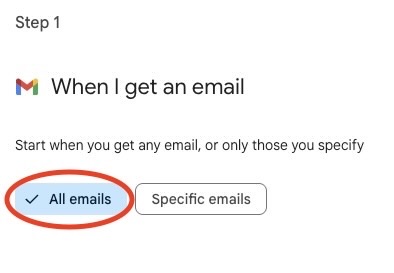
- To start the flow you will need to select a starter.

- Choose When I get an email as the starter.

Step 2:
- Make sure that All emails is selected so that the Flow can evaluate each incoming message.
Step 3:
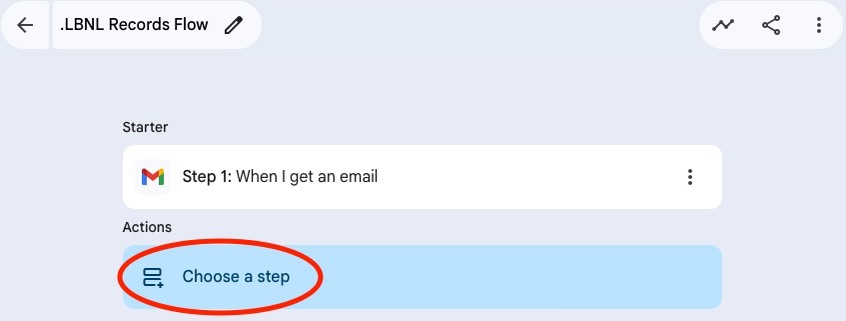
- Next you will need to choose a step.
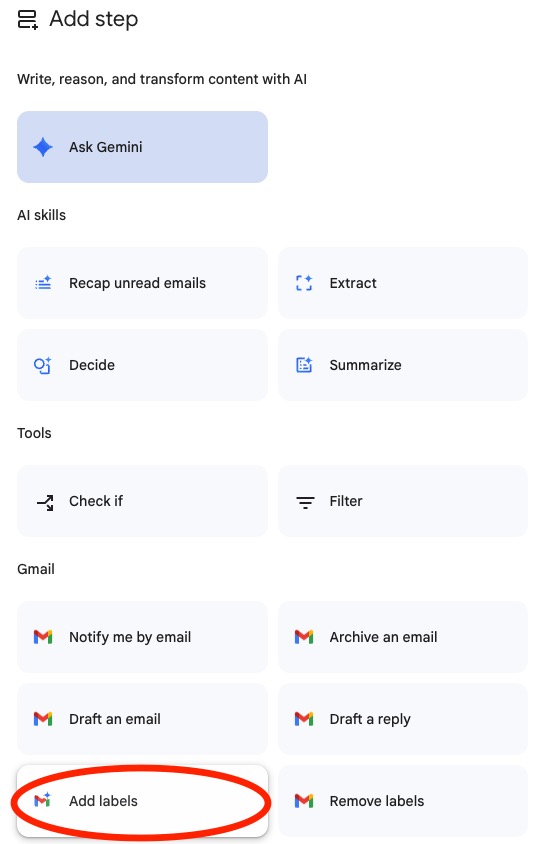
- Select Add labels.
Step 4:
- Once you’ve selected Add labels you will need to enable AI-powered labels.

Step 5:
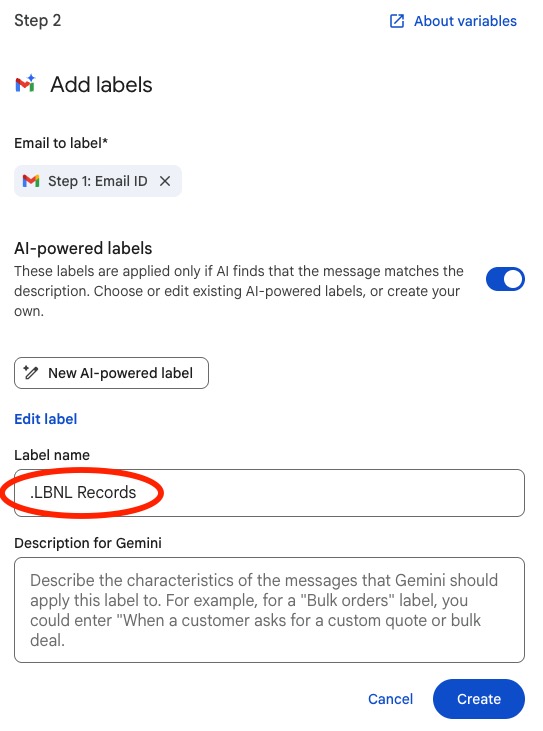
- After enabling create a new AI-powered label named .LBNL Records.

- Use the following description prompt to define when the label should be applied:
Copy and paste this into the Description for Gemini
The email should be labeled if:
- The email reflects a decision, approval, or direction that impacts projects, compliance, funding, or operations.
- The email would be needed to justify or explain why something was done and is important to retain.
- The email contains substantive, meaningful content rather than transitory logistics.
Examples include: A Principal Investigator describing the rationale behind a change in research methodology. A facilities manager explaining the basis for a safety procedure update. An email exchange resolving a compliance or audit finding.
An email should not be labeled if:
- The email is personal in nature or a calendar invite.
- The email is an automated notification or system-generated update.
- The email is not substantive or is purely logistical.
- The email is a Google notification about a change to a file in Google Drive.
The prompt above establishes the minimum criteria for distinguishing official records from non-record communications, focusing on decisions, approvals, rationale, and other substantive business content. It is designed as a starting point rather than a one-size-fits-all solution. Because roles, responsibilities, and communication patterns vary across the Lab, users are encouraged to tailor the prompt to better fit their needs. AI Label Prompt Examples is a new resource of customizable prompt templates that you can use for your AI label description.
- This is how the Label name and Description for Gemini should appear. Once you have entered the information, click Create.

Step 6:
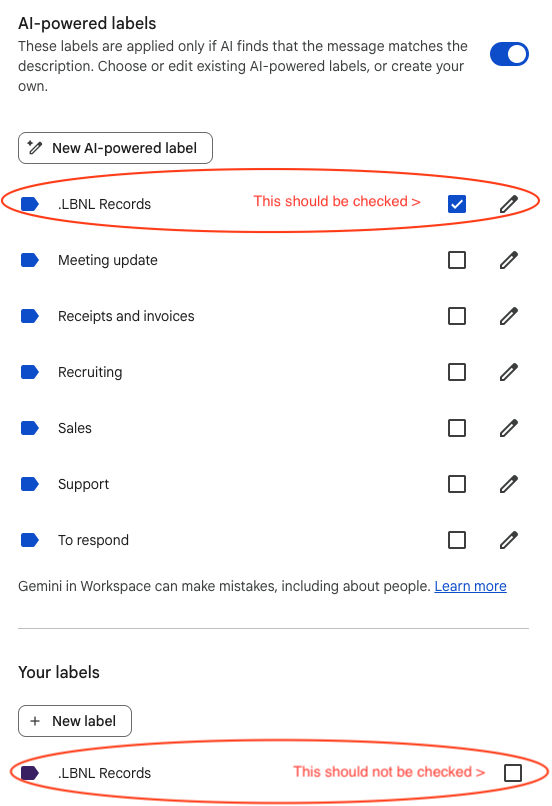
- Confirm the new .LBNL Records AI label is selected.
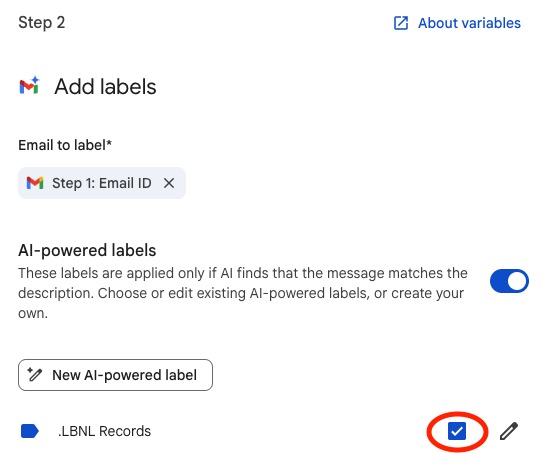
Below the AI Labels you will see of a list of your labels. Make sure the .LBNL Records label in that section is NOT selected.
- Finally, click Turn on to enable the Flow.

Once enabled, the Flow will automatically label qualifying emails as they arrive, reducing manual effort while supporting compliance with Berkeley Lab’s records management requirements.


 in the bottom right or navigate to